Losing files or photos from your phone can be frustrating, especially when it happens without warning. Maybe it was an accidental tap, a failed update, or a system glitch that wiped something important. Thankfully, both Android and iOS offer built-in ways to retrieve deleted data—if you act quickly enough.
From temporary trash folders to cloud-based backups and even third-party tools, there are several methods that can help you recover your files. In this guide, we'll cover how recovery works on both platforms and what you can do to avoid permanent loss in the future.
Understanding the Basics of File Deletion on Mobile Devices
When a file or photo is deleted on a smartphone, it usually isn't removed right away. Most modern Android and iOS devices move deleted items to a temporary folder. These folders function like a recycle bin, holding deleted content for a limited time—typically up to 30 days—before permanently erasing it.

Cloud storage plays a big part in data recovery. If your files were synced to Google Drive or iCloud, they might still be available even if they’re gone from local storage. Whether you use Android or iOS, having sync and backup features enabled makes file recovery more dependable.
Where your files were stored matters, too. On Android, content could be on internal memory or an SD card. On iPhones, everything is stored in internal memory and synced via iCloud if enabled. These details affect the recovery process and determine which tools might help.
How to Recover Deleted Files and Photos on Android?
Android phones vary, but most now include trash folders in their gallery and file manager apps. If you deleted a photo, open your gallery app, find the trash section, and check if it’s still within the 30-day limit. Google Photos also has a “Trash” section under the Library tab. If the photo or video is listed there, restoring it only takes a tap.
For files, the My Files app on Samsung devices has its own trash. Some other file manager apps on Android include similar features. Always check these places first before assuming the file is gone.
If you used Google Drive to save documents or images, open the Drive app and check the “Trash” folder. Deleted items stay there for 30 days as well. You can restore them to their original location with a tap.
If the deleted content isn’t in any trash folder and wasn’t backed up, recovery becomes harder. Apps like DiskDigger or EaseUS MobiSaver can scan storage for recently deleted files. These apps may require special permissions, and in some cases, rooting the device is necessary. Root access allows apps to access system storage more deeply, but it's not always safe or practical.
If your data was stored on an SD card, recovery tools tend to be more effective. You can connect the card to a computer and run recovery software that scans for files marked for deletion but not yet overwritten. Recovery is more difficult if your files were in internal memory without any backup.
How to Recover Deleted Files and Photos on iOS?
iPhones have a “Recently Deleted” folder inside the Photos app, where deleted photos and videos remain for 30 days. Go to the Photos app, tap “Albums,” and scroll to find this folder. If the item is still there, tap “Recover” to move it back to your main library.
For other file types, the Files app has a “Recently Deleted” section. It includes deleted PDFs, documents, or other files stored in iCloud Drive or locally. Tap and hold on the file, then select “Recover” to restore it.
If the file isn’t found locally, check iCloud.com by logging into your account. From there, explore both the Photos section and iCloud Drive, which have their own trash folders. Restoring from the website sends files back to your iCloud-linked device.
If that doesn’t work and you’ve recently backed up your phone, you can restore your iPhone using an older iCloud or iTunes backup. This method returns your phone to a previous state, which can bring back deleted files—but it also removes anything added after that backup was created.
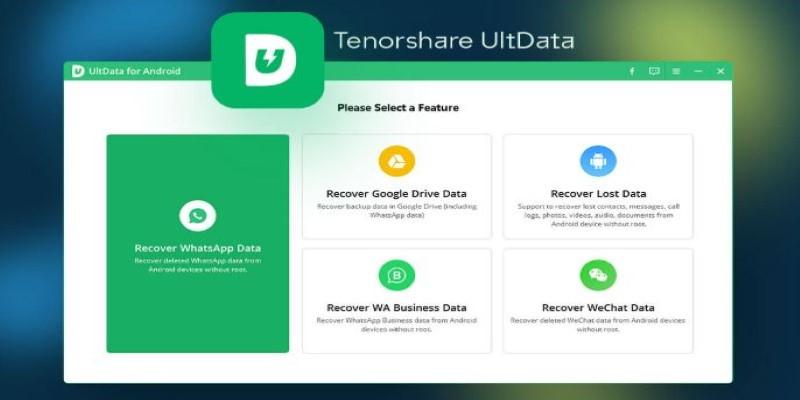
If backups weren’t enabled and the files aren’t in any trash folders, you might consider third-party tools like iMobie PhoneRescue or Tenorshare UltData. These programs scan the iPhone’s memory to look for deleted data. While success isn’t guaranteed, they can recover files in cases where other options fail. Most of these tools require a computer and may need a paid license for full access.
Best Practices to Prevent Permanent Loss
Once a file is permanently removed and overwritten, there’s no reliable way to bring it back. Setting up backups is the best way to avoid future loss. On Android, keep Google Photos and Google Drive backup options turned on. On iOS, make sure iCloud backup is active and syncing works for both Photos and Files.
Regularly checking your device's trash or recently deleted folders can help. Many people don't realize deleted files are still recoverable until it's too late. Checking those folders weekly can save you stress later.
Using apps with built-in cloud support is another safeguard. Dropbox, OneDrive, and Mega offer file syncing and extended trash retention. These services store older versions of files and deleted items for weeks or months, giving you more time to fix mistakes.
Avoid aggressive cleaners or "phone booster" apps that promise to free space. They often delete cached files, photos, and downloads without warning. Always review what's being deleted before confirming.
Conclusion
Losing files from your phone isn't always the end of the road. With the right steps and timing, Android and iOS both offer ways to recover deleted photos, videos, and documents. Built-in trash folders, cloud backups, and third-party tools provide multiple paths to recover your data—especially if you’ve enabled syncing. Taking small precautions now, like automatic backups and avoiding risky cleanup apps, can save you time and worry in the future. While not every file can be recovered, most situations aren’t hopeless, especially if you act quickly and check all the right places.